GUIs GUIs Site News Site News Xerox Xerox Visi On Visi On GEM GEM Deskmate Deskmate GEOS GEOS Desqview/X Desqview/X AmigaOS AmigaOS RISC OS RISC OS BeOS BeOS QNX QNX OS/2 OS/2 Apple Apple Linux/Unix Linux/Unix Windows Windows Win Shells Win Shells Misc GUIs Misc GUIs GUI Timeline GUI Timeline GUI Sites GUI Sites
|
Location: GUIs >
Linux / Unix >
Solaris 8 CDE and OpenWindows screen shots
Click on the thumbnail images for larger images.
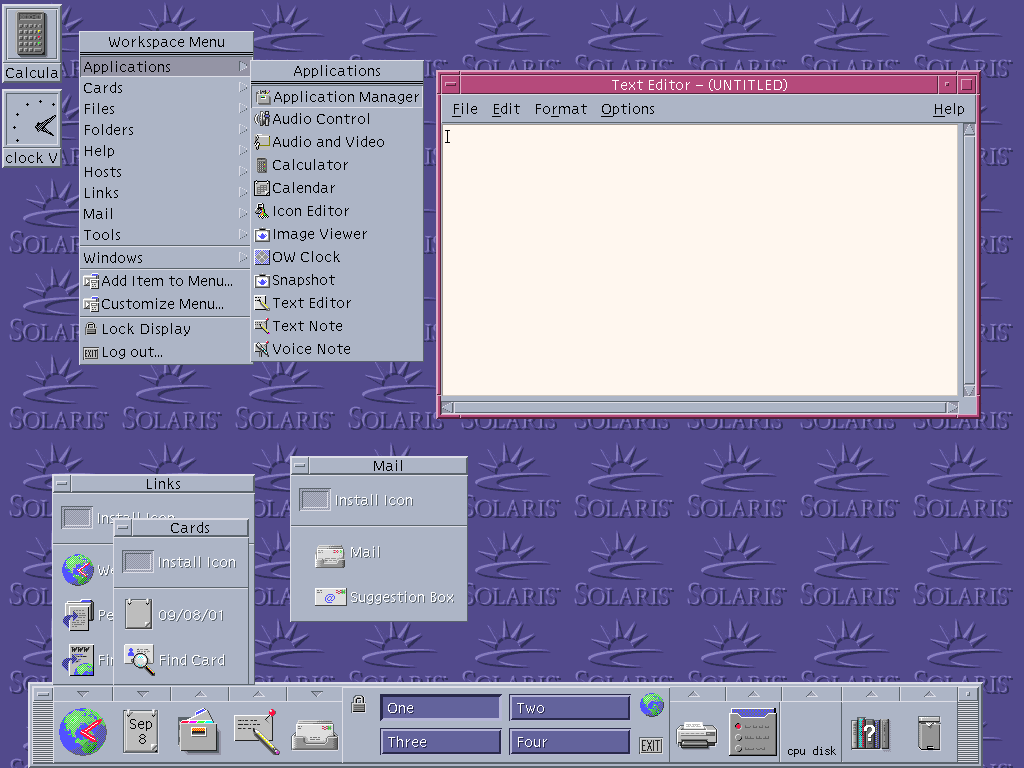
The CDE desktop is... different. The first noticeable difference is the tool bar at the bottom. Above each tool bar icon is an arrow that you can click to display a menu with related options. The menu will stay up until the arrow is clicked again or the close button on the menu is clicked. The menus can also be torn off in to free floating windows. The standard way for launching applications, however is through the right-click desktop menu. Windowing controls are not too unusual. A box in the upper left of windows opens a windowing menu when clicked and closes the window when double clicked. In the upper right are buttons that minimize and maximize the size of the window. (Similar to Windows 3.1) Minimized programs appear as icons on the desktop. In CDE the desktop area is called the "workspace". By default you can select from four different workspaces that are shown on the tool bar. Alternate workspaces can be added or removed.
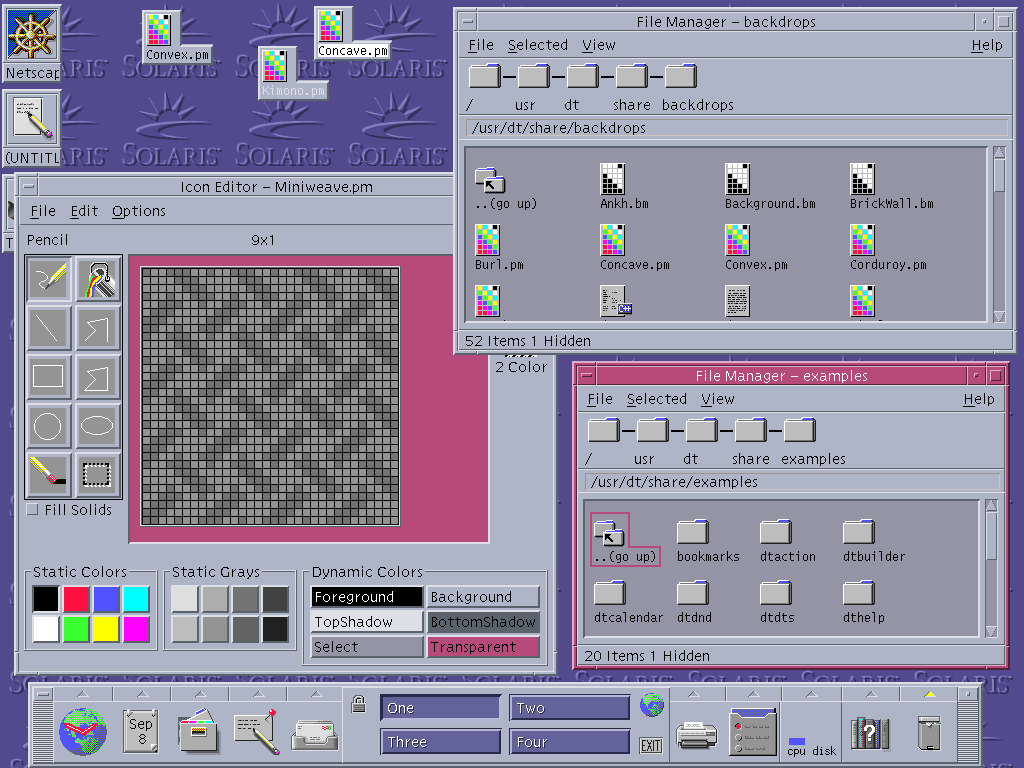
Files can not be put on the desktop, but a kind of short cut can be. This picture shows some icons that have been dragged to the desktop. The files they represent have not moved but new icons appear on the desktop. The file manager displays files as icons that can be opened by double-clicking. An interesting feature is that it displays the current location as a series of folder icons. These folder icons can be clicked on to open that folder. By default the file manager browses in a single window but new file manager windows can be opened.
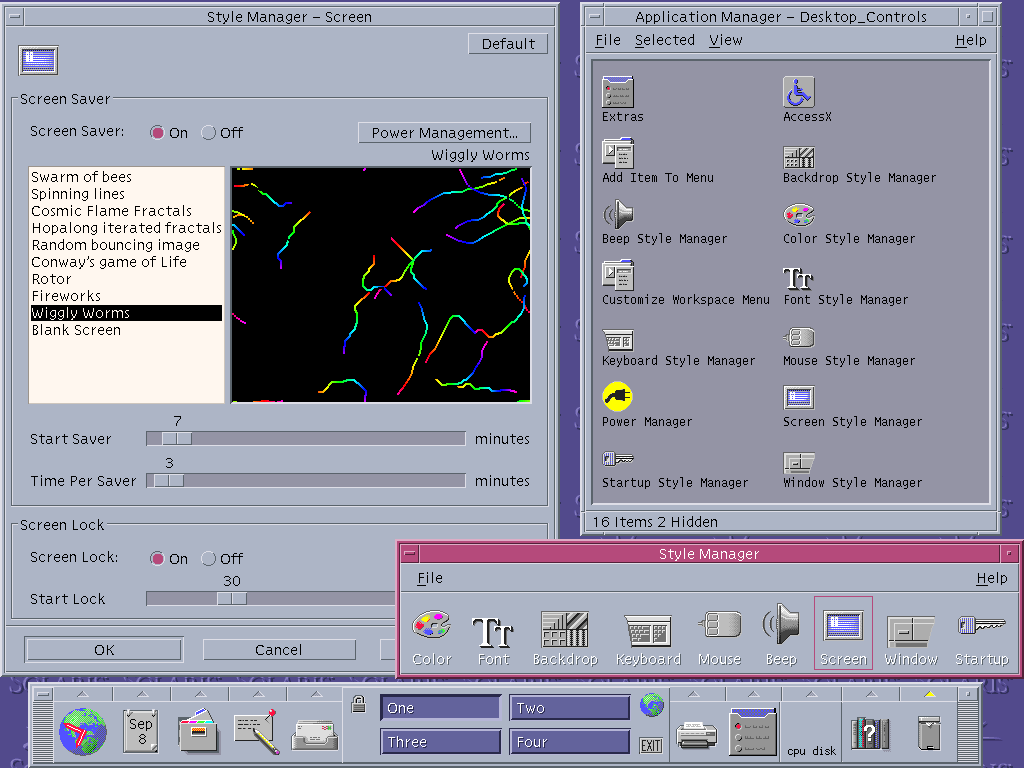
The "Style Manager" provides a number of ways in which CDE can be customized. Such customizations include desktop colors, fonts, and screen savers.
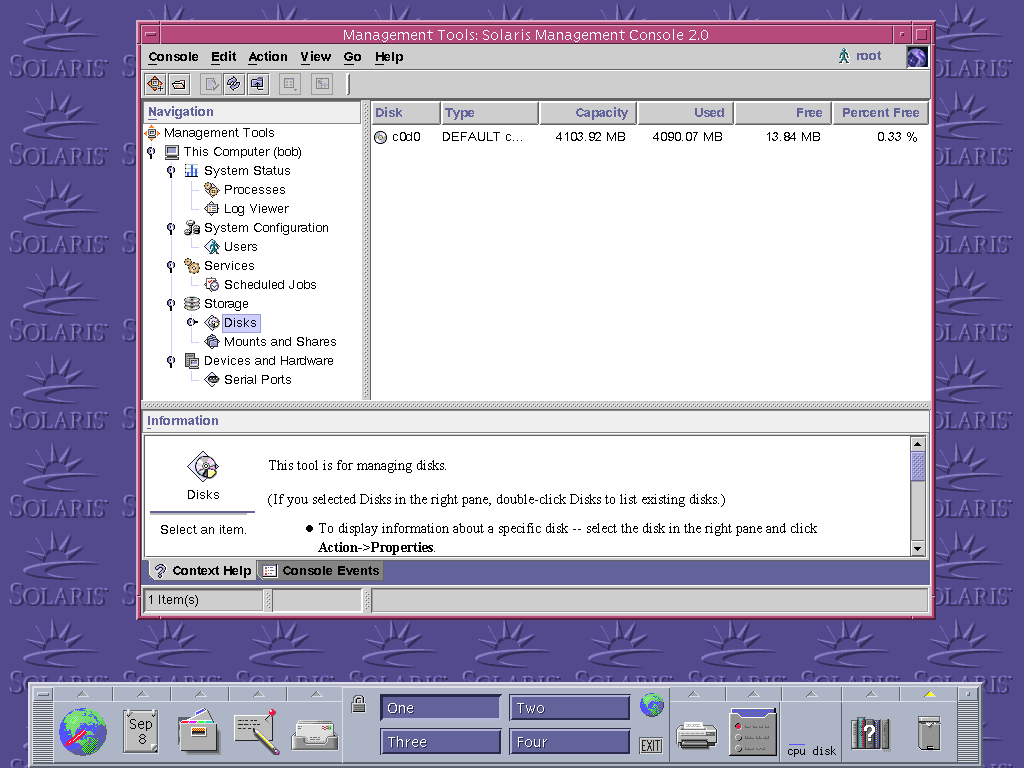
The Solaris Management Console is a Java application that can perform various configuration operations on a Solaris machine. I didn't try it, but it seems to be capable of controlling remote machines as well as the local machine.
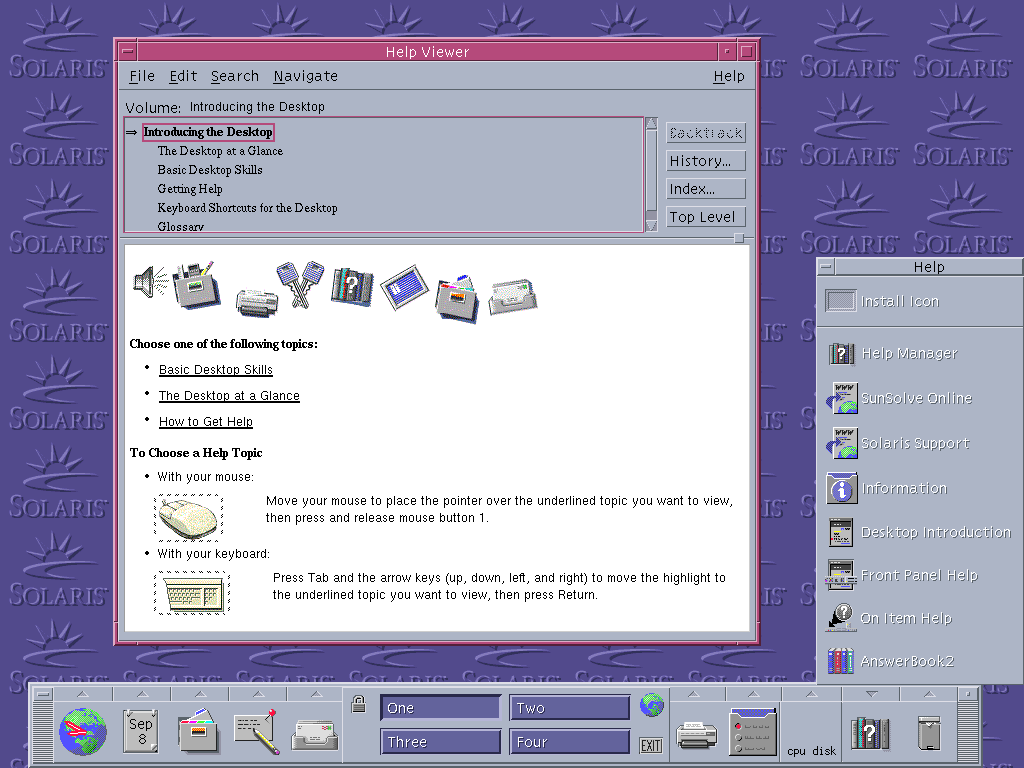
CDE includes a typical hyper text Help Viewer. Solaris also includes a number of other sources of help and documentation.
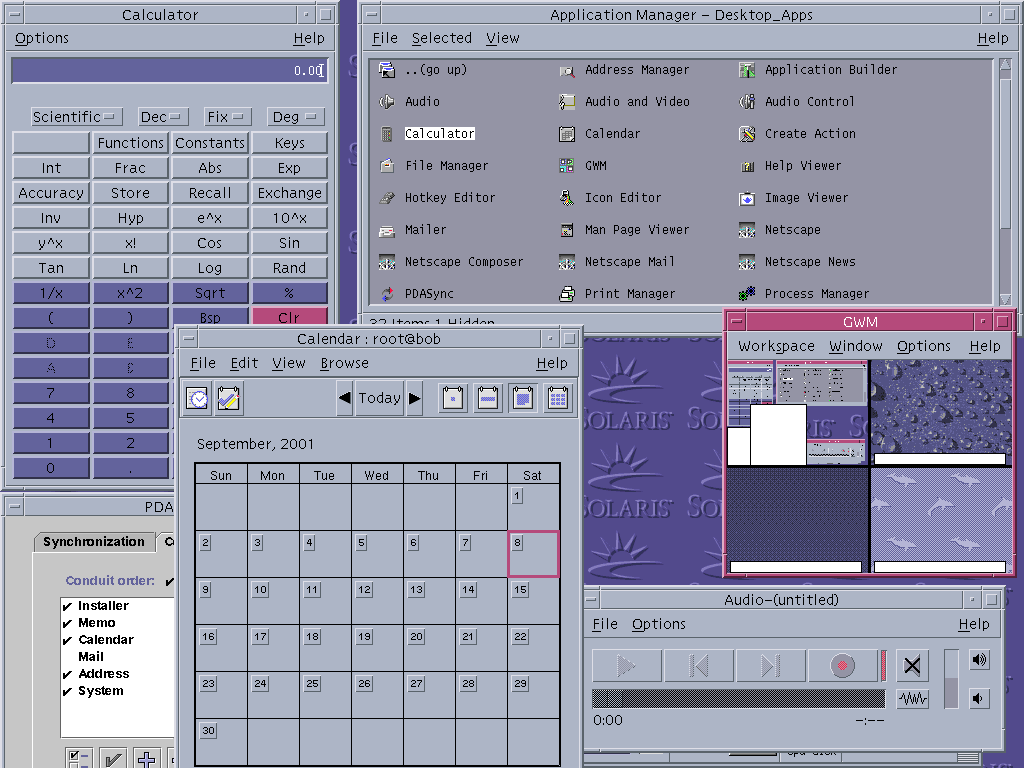
Several CDE applications running. The PDA utility seems to be "doing its own thing" UI wise. It appears to be another Java application. Java applications have their own way of drawing buttons, fonts, and colors that typically ignores the settings and appearance of the native desktop or OS.
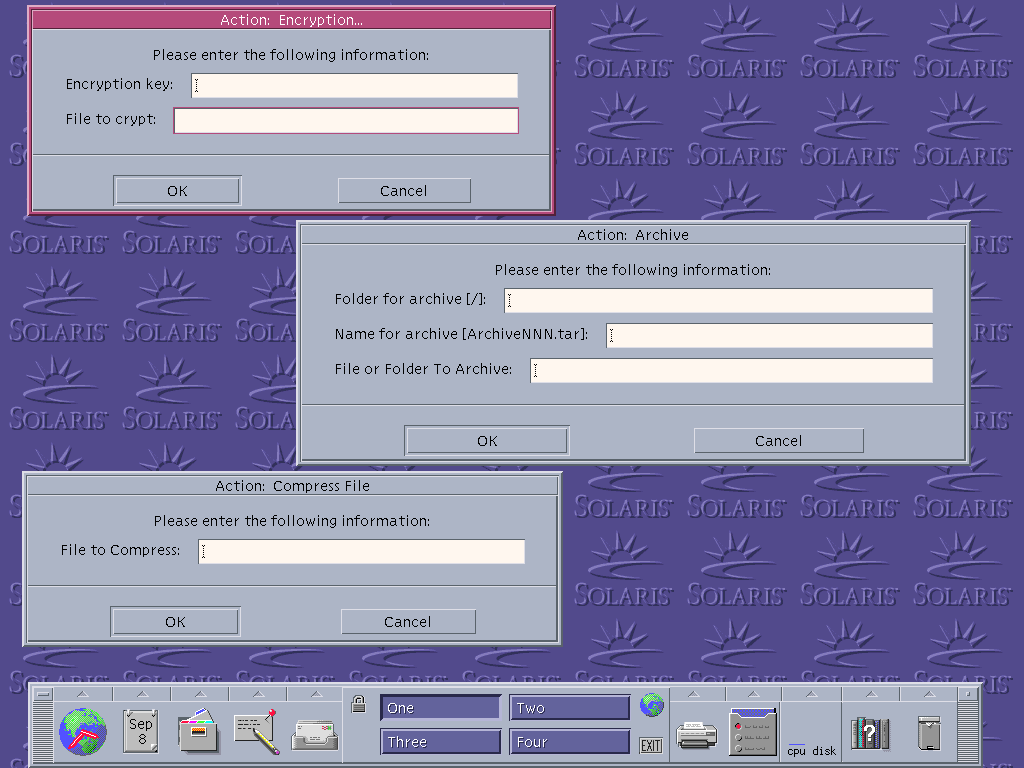
It seems to me that a command line would be more useful than these "applications".
Here it appears you have to enter the entire path and file name for each
option and there isn't even any kind of "browse" option. At a command prompt
you might not have to type the entire path if you are already in the proper
folder.
|